
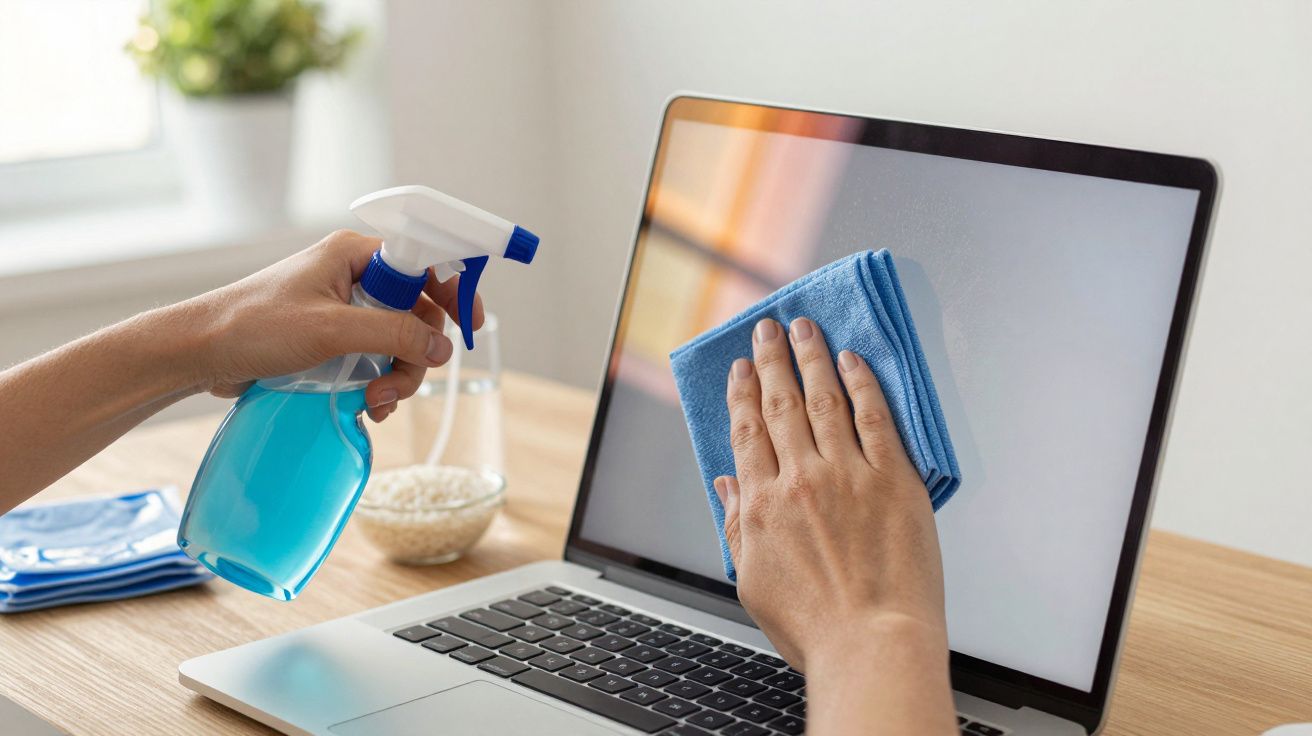
Just a couple of faint cloudy marks on a previously flawless laptop screen-the sort you half-heartedly buff away with the hem of your T‑shirt when nobody’s watching. Emma was working at her kitchen table and reached for the closest spray bottle: a blue window cleaner, the same one she had just used on the patio doors. She misted the display twice, wiped once, and immediately something felt off. The screen looked… uneven. Darker in places. Iridescent, rainbow-like swirls where the light caught it. A slight gritty haze that definitely hadn’t been there the day before.
She moved in closer, rubbed with more force, then stopped cold.
Each wipe made the display look worse.
Something she couldn’t see had started to lift away-something she didn’t even realise was there until it began disappearing.
That “shiny glass” on your laptop screen isn’t just glass
It’s easy to assume a laptop display is basically a miniature television: a slab of glass you can clean like a window. In reality, the surface is built up in layers, more like a mille-feuille than a single pane. There’s the outer protective panel, polarising layers, and-on many newer machines-a very fine anti-reflective coating that helps blacks look deeper, reduces glare and makes text appear clearer.
In theory, those coatings are designed to cope with day-to-day use. In practice, they behave more like a delicate varnish on a favourite table: beautiful, but surprisingly easy to mark, scratch or chemically weaken if you use the wrong product. Window cleaner, particularly versions containing ammonia or lots of alcohol, is exactly the wrong choice. One wipe feels satisfying; repeated wipes can act like a slow chemical stripping process.
The most frustrating part is that the damage often doesn’t announce itself straight away.
Anti-reflective coating damage: how it starts (and why you don’t notice at first)
On tech forums, people share photos of MacBook Pro displays that look as if the screen has developed a skin condition: patchy dull areas, shiny halos, and matte “islands” where light reflects differently. A common confession follows-someone has been “carefully” cleaning the screen every week for a year with a household glass cleaner. It looks fine… until it doesn’t. One day a small area near the webcam loses its uniform finish. Then, month by month, the dullness creeps outwards, especially along the edges, like rust spreading under paint.
IT support teams describe the same pattern on company machines returned from remote workers: screens that look “snowed over” with countless tiny etch marks. Repair shops recognise the tell-tale signs immediately-cloudy rings where liquid was sprayed straight onto the panel, or drip tracks where cleaner pooled along the bottom bezel. On some premium laptops, that anti-reflective layer is so thin that a single bad clean can leave a permanent, obvious blemish.
For many people, this is also when they find out their warranty doesn’t cover “cleaning-related damage”. Paying privately, a screen replacement can easily cost close to half the price of a new laptop.
What ammonia and alcohol actually do to a laptop screen
At the chemical level, ammonia is small, reactive and completely indifferent to how expensive your laptop was. It can attack the bonds within many anti-reflective finishes, gradually breaking the coating down. Cleaners that are heavy in alcohol can cause similar problems-especially when you rub firmly, adding heat and pressure to the mix. The effect is like taking ultra-fine abrasive paper to a glossy photograph: you’re not only removing grime, you’re wearing away the surface finish itself.
That’s why a screen can shift from crisp and high-contrast to hazy and washed out. The coating that used to control reflections is no longer doing its job. More ambient light bounces back into your eyes. Blacks turn to charcoal. Tiny micro-scratches scatter the backlight. No “better cloth” can restore what’s been removed-you’ve altered the display’s optical layer.
And once that layer has gone in a particular spot, there is no miracle “re-coating spray” that puts it back. Manufacturers apply these coatings in controlled factory environments using processes such as vapour deposition and specialised baths. At home, with a supermarket spray bottle, the one thing you can apply consistently is more damage.
How to clean your laptop screen without quietly destroying it
The safest approach begins before any wiping at all: switch the laptop off. A black screen makes dust, fingerprints and streaks far easier to see than a bright display, and it also reduces the chance of accidental clicks or static-related surprises while you clean.
Next, use a clean microfiber cloth-the type made for spectacles or camera lenses, not a fluffy cloth that’s been washed with fabric softener. Softener residues can smear and may increase the temptation to scrub harder.
The rule that matters most is simple: never spray any liquid directly onto the display. If you genuinely need moisture, lightly dampen the cloth (not the screen) with distilled water or a cleaner sold specifically for screens. Then wipe gently in straight, single passes. Treat it as if you’re dusting a photograph, not scouring a kitchen worktop: light pressure, consistent strokes, and avoid grinding away in circles on the same mark.
Most people don’t do this perfectly every day. Realistically, we clean when we’re irritated, not when we’re calm and methodical.
That’s why tiny habits make the biggest difference. Keep a dedicated microfiber cloth in your laptop sleeve or next to your desk and try it dry first. A dry wipe removes the bulk of visible grime surprisingly well. For the one stubborn fingerprint that won’t shift, breathe lightly on the area to add a trace of moisture, then wipe-your breath is gentler than half the sprays under the sink.
Two extra things that help (and are often overlooked)
First, be mindful of where the dirt comes from. A lot of screen smears are transferred from the keyboard and trackpad-skin oils that end up on your fingertips and then on the display when you adjust the lid or touch the screen on a 2‑in‑1. Wiping your hands and cleaning the palm rest/trackpad area reduces how often you feel compelled to attack the screen itself.
Second, avoid tap water if you live in a hard-water area. Minerals can dry into faint streaks, which then encourages more rubbing. Distilled water reduces that risk and keeps the routine gentle.
The real enemies: improvisation and panic cleaning
The biggest threat isn’t only window cleaner-it’s making it up as you go along. Paper towels are tempting, but they’re wood pulp and can create microscopic scratches. Old T‑shirts can carry detergent residues and tiny abrasive fibres. Baby wipes feel mild, yet often include surfactants and fragrances that leave a film. Over time, that residue attracts more dust, turning every future clean into a small friction battle.
Then there’s the classic panic clean: five minutes before a Teams or Zoom call, someone notices greasy streaks and grabs whatever is nearest. That’s how ammonia, alcohol, and random wipes end up on delicate coatings. Over a long enough timeline, panic beats good intentions-unless you change what “nearest” means by keeping the right cloth within reach.
“Most screen damage we see isn’t from drops or knocks,” a repair technician in London told me. “It’s from people trying to be tidy with the wrong spray.”
Once you understand how fragile that surface layer can be, a straightforward checklist suddenly feels sensible:
- No window cleaner, no vinegar, and no alcohol-heavy sprays on the display.
- Use a clean, soft microfiber cloth dedicated to screens only.
- If you must use liquid, put it on the cloth-never directly on the panel.
- Don’t press hard; use time and several gentle passes instead.
- Clean with the laptop switched off, and allow the screen to dry before closing the lid.
These are small adjustments, not a lifestyle overhaul. But they’re the difference between a display that slowly “ages badly” and one that remains sharp and comfortable to look at for years. Most of us have experienced that unpleasant moment when something we value suddenly looks old overnight-simply because we treated it like it was as tough as everything else.
The quiet cost of a cloudy screen
A damaged anti-reflective coating isn’t just an eyesore in forum photos; it leaks into daily life. Text looks slightly less crisp, so you turn the brightness up. Higher brightness means more eye strain in the evenings. Reflections you used to ignore become more noticeable, so you tilt the laptop, shift in your chair, or pull the blinds. Your routine bends around a flaw created by a couple of sprays of window cleaner.
There’s a financial side too, and it’s rarely said out loud. A laptop with a uniform, clean-looking screen simply feels newer for longer. When you come to sell it or trade it in, clear photos of an even panel help. Cloudy patches, peeling lines, or rainbow staining signals “mistreatment” to buyers. They may not know what an anti-reflective layer is, but they recognise a display that looks tired and blotchy-and they offer less.
On a broader level, it’s a reminder of how modern devices can be both sturdy and fragile at the same time. Aluminium casings and “durability” marketing suggest toughness, yet the wrong cleaner can quietly strip away a layer designed to make the screen easier on your eyes. The laptop still starts up. The keyboard still works. Only the part you stare at all day has changed-and it’s not reversible.
You don’t need special tools or an elaborate ritual to avoid that. Just treat the idea seriously that not all “glass” is the same. The bottle that makes a window sparkle can ruin a screen that cost you a month’s pay. A better cloth, a softer touch and a moment’s patience draw the line.
| Key point | Detail | Why it matters to you |
|---|---|---|
| Ammonia damages coatings | Window cleaner often contains ammonia or harsh solvents that degrade anti-reflective coating layers | Helps you avoid products that quietly ruin expensive screens |
| Gentle methods work best | Start with a dry microfiber cloth, then use a lightly dampened cloth with distilled water or screen-safe cleaner if needed | Gives you a simple routine that’s easy to repeat |
| Prevention saves money | Coating damage is permanent and screen replacement is expensive | Protects comfort, resale value and your budget |
FAQ
Can I use regular glass cleaner on any laptop screen?
No. Many glass cleaners contain ammonia or alcohol, which can strip or dull anti-reflective coating and oleophobic layers on modern displays.What’s the safest option if I have nothing else to hand?
A clean, dry microfiber cloth is the best choice. For stubborn marks, a corner lightly dampened with distilled water is safer than household sprays.How can I tell if I’ve already damaged the coating?
Check for cloudy patches, rainbow spots, or areas that appear more reflective or more matte than the rest-often near the edges or wherever you tend to spray.Is there any way to repair or reapply the anti-reflective layer at home?
No. These coatings are applied in factories under controlled conditions. At home you can only prevent further damage, or replace the screen.Are electronics shop screen wipes actually safe?
Usually, yes-provided they’re made specifically for monitors and laptop screens and clearly state they’re ammonia-free and alcohol-free (or very low alcohol).






Comments
No comments yet. Be the first to comment!
Leave a Comment