
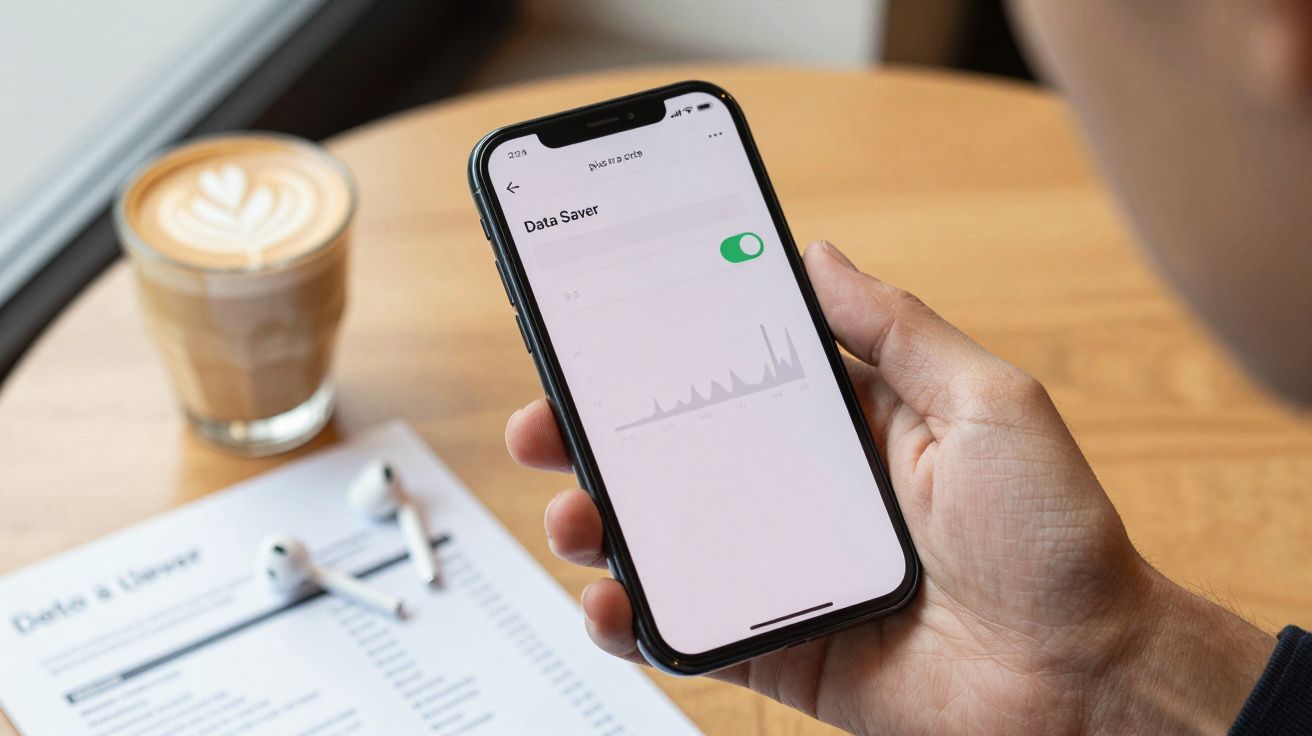
Behind that symbol is a choice with real consequences.
If you spot a plus in a circle on your Android phone, it’s easy to assume something has gone wrong or that a new, mysterious feature has switched itself on. The reassuring bit: it isn’t a virus, and it isn’t a hidden charge. Even so, it’s worth understanding exactly what the icon means, because it changes how your handset uses mobile data.
What the plus in a circle on your phone actually means
On many Android devices, the plus in a circle indicates that Data Saver mode (also called data saving) is enabled. In practical terms, this setting is designed to keep your phone’s mobile data usage as low as possible.
Data Saver mode cuts mobile data usage, but it can restrict notifications, image loading and hotspot features.
With Data Saver mode enabled, apps that would normally fetch data constantly in the background are slowed down or prevented from doing so. That’s why photos in messaging apps or social media may only load fully after you tap them or manually refresh the feed.
It can be confusing because the icon isn’t consistent across brands-and some manufacturers don’t show an obvious symbol in the status bar at all. The underlying feature may be the same, but the visual cue varies.
Different icons on different manufacturers’ devices
Depending on the phone, the same Data Saver mode may be shown with different indicators:
- Many Android phones: a plus in a circle in the status bar
- Samsung Galaxy: two arrows arranged in a triangle to indicate data saving
- iPhone: a comparable feature exists, but there’s typically no status bar icon for it
That’s why people often notice the symbol for the first time and can’t remember which setting they previously enabled-online support threads are full of exactly that question.
Data Saver mode: brilliant for your allowance, annoying in day-to-day use?
Data Saver mode is especially useful if you’re on a small monthly allowance. If you only have a few gigabytes each month, switching on data saving can noticeably delay the point where you run out and speeds are restricted.
The main way it achieves this is by limiting background activity-such as automatic app updates over mobile data or constant syncing in the background. That’s also where the compromise comes in.
The limitations you may notice with Data Saver mode
Once data saving is enabled, your phone can behave quite differently. Common side effects include:
- Images in chats only partially load, or load fully only after a tap
- Social media feeds refresh more slowly, or only when you actively refresh
- Push notifications arrive late, or don’t arrive at all
- Apps that rely on frequent location updates or background refresh can become unreliable
- A mobile hotspot on Android often won’t work while Data Saver mode is on
If you try to get your laptop online via hotspot while you’re out and about, you may wonder why nothing connects-often it’s simply because Data Saver mode is blocking the hotspot feature.
If important notifications are missing or the hotspot won’t start, the plus-in-a-circle icon is a strong clue.
How to switch Data Saver mode on or off
When you see the plus in a circle, you’re essentially choosing between saving data and having everything run at full convenience. You can balance the two, but you can’t fully maximise both at the same time.
Changing Data Saver mode on Android phones (plus-in-a-circle icon)
Menu names vary a little by manufacturer, but you’ll usually find Data Saver mode in one of these locations:
- Many Android phones (for example, Google Pixel):
Settings → Network & Internet → Data Saver - Samsung Galaxy:
Settings → Connections → Data usage → Data saver
From there, a simple toggle turns it on or off. If the plus in a circle disappears from the status bar, Data Saver mode is no longer active.
Data saving on iPhone
iPhones also offer a similar option, usually without a dedicated symbol in the status bar. It’s often labelled as a low data mode within mobile data settings.
- Settings → Mobile Data → SIM → Data Mode → Low Data Mode (data saving)
So if certain apps feel slower on mobile data than on Wi‑Fi, it’s worth checking this menu on iPhone as well.
Allowing certain apps to bypass data saving
If you want to protect your allowance but still need reliable background activity for a few key apps, Android typically lets you set exceptions. This keeps Data Saver mode enabled overall, while allowing selected apps to use data in the background as normal.
Apps commonly worth exempting include:
- Messaging apps such as WhatsApp or Signal
- Work or university email apps
- Navigation apps that regularly fetch map data
- Two-factor authentication apps used for logins
In the Android Data Saver mode settings, look for options such as Unrestricted data or Allow app while Data Saver is on, then enable the relevant apps.
In-app data savers
Some services also include their own data saving controls inside the app-separate from the phone’s system-wide Data Saver mode. Typical examples include:
- Instagram: reduced data use for videos and Stories
- Snapchat: a mode where content fully loads only when you request it
These app-level settings work independently. If you’re being particularly strict with your allowance, you can combine in-app data saving with Android’s Data Saver mode.
Extra tip: check Quick Settings and background data controls
If you’re trying to work out why the plus in a circle appeared, it’s also worth looking in Quick Settings (swipe down from the top of the screen). Many Android phones include a one-tap tile for Data Saver mode, which makes it easy to switch on by accident.
You can also review background data permissions per app (often under Settings → Apps → [App name] → Mobile data & Wi‑Fi). If an app is misbehaving, allowing background data for that specific app can restore normal performance without fully disabling data saving across the whole phone.
When data saving is worth it-and when it isn’t
Data Saver mode is most helpful in situations like these:
- Near the end of the month when your allowance is almost gone
- Abroad, if you don’t have a good-value roaming option
- On very small tariffs with only a few gigabytes
- On secondary devices that are only used occasionally
It’s less suitable if you need instant responsiveness-particularly for work messaging, critical alert apps, or frequent hotspot use.
If you must respond immediately to every email and message, enable Data Saver mode cautiously.
If you’re constantly running out of data
If you find yourself keeping Data Saver mode on all the time just to avoid being slowed down every month, it may be a sign your plan no longer matches how you use your phone. At that point, tips and restrictions only go so far-because everyday use becomes noticeably less convenient.
In that situation, it can be worth comparing current mobile plans. Many networks offer 4G or 5G options with much larger allowances-sometimes 50 GB or more, occasionally with trial deals. If you regularly use navigation, stream media, or work on the move, a bigger allowance often feels far less restrictive than relying on permanent data saving.
Small symbols, big impact: learning the status bar
The plus in a circle is just one of many icons Android can place in the status bar. Often, a single symbol explains why something is working-or why it’s being blocked. If you recognise the signs, you save time, frustration and, in the case of Data Saver mode, potentially money.
A useful habit is simple: if your phone starts acting oddly-images won’t load, the hotspot refuses to work, notifications are missing-check the status bar first. The explanation is often sitting there, long before you start reinstalling apps or hunting for complicated faults.
Ultimately, the plus-in-a-circle icon comes down to one question: is saving data more important right now than convenience? The answer will change depending on the month, your plan and how you’re using your phone-and thankfully, the setting is only a few taps away.






Comments
No comments yet. Be the first to comment!
Leave a Comment